
Talk to AI
wherever you type.
Type @ and anything, in any app on your Mac: a question, a sentence to improve or translate, a sum, an app to open. The likeliest action comes first; press Return.
Free · macOS 14 or later · Apple silicon and Intel · Notarized by Apple
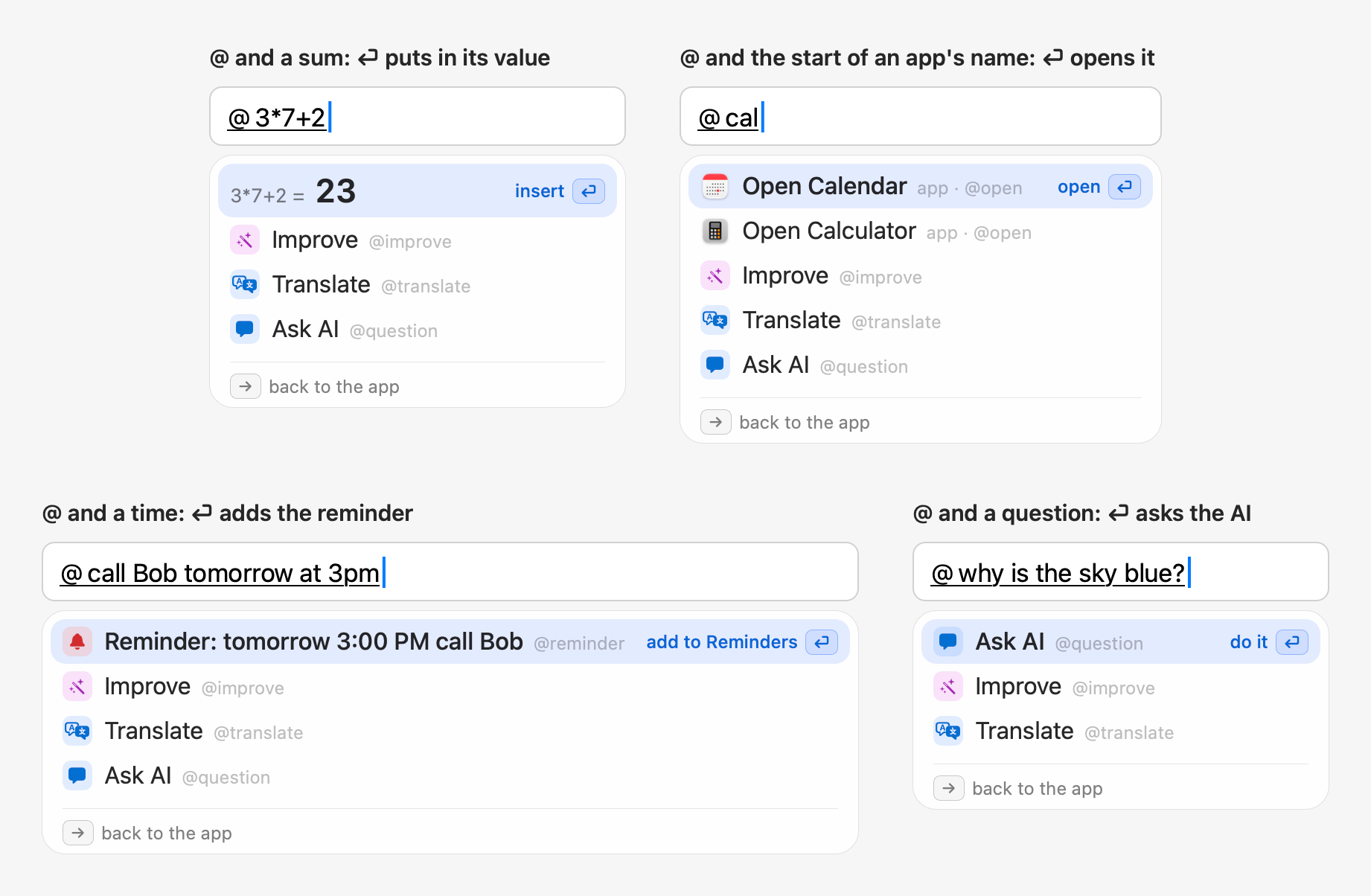
Type @, then anything.
No command names to learn: each row says what Return does. Nothing goes to the AI, and nothing runs, until you pick a row.
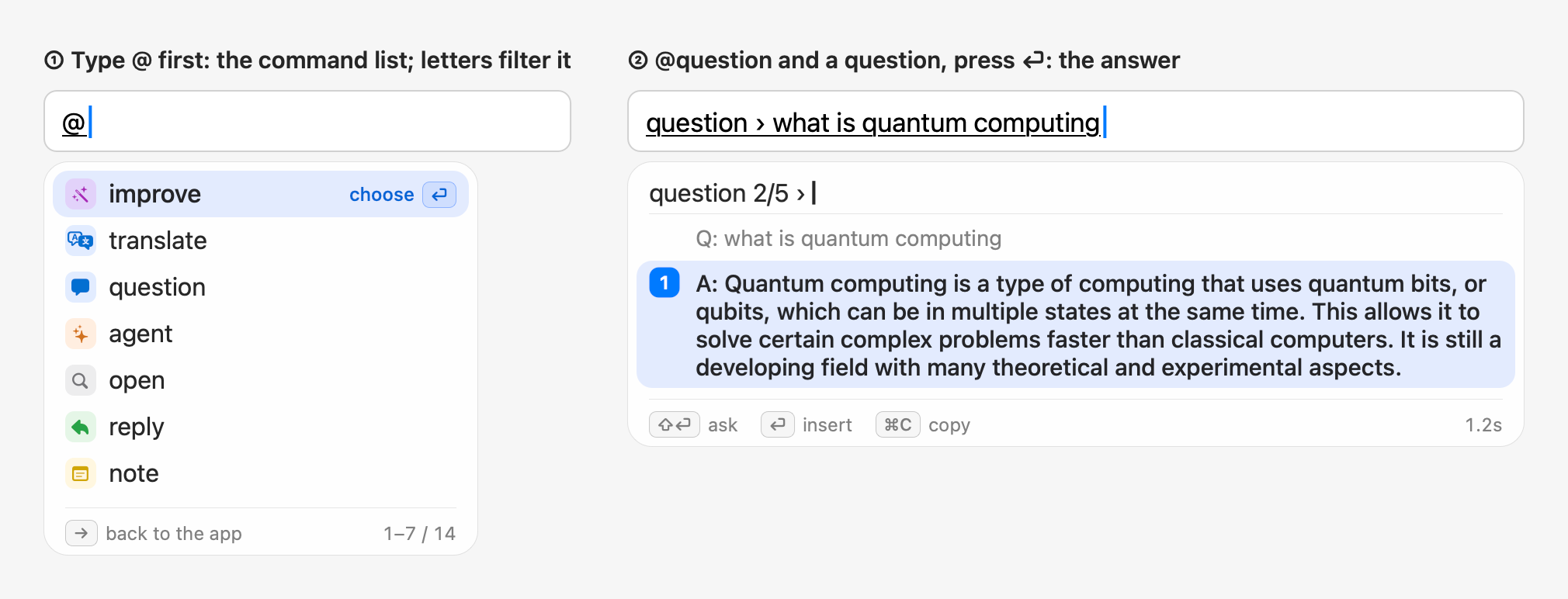
The start of a name finds its command: @tr for @translate. @ alone lists them, the most used first.
@3*7+2 shows 23 as you type; Return puts it in.
@cal lists Calendar and Calculator. Folders and web addresses open the same way.
@call Bob tomorrow at 3pm, and Return adds it to Reminders for 3 PM tomorrow.
Say it better, right where you wrote it.
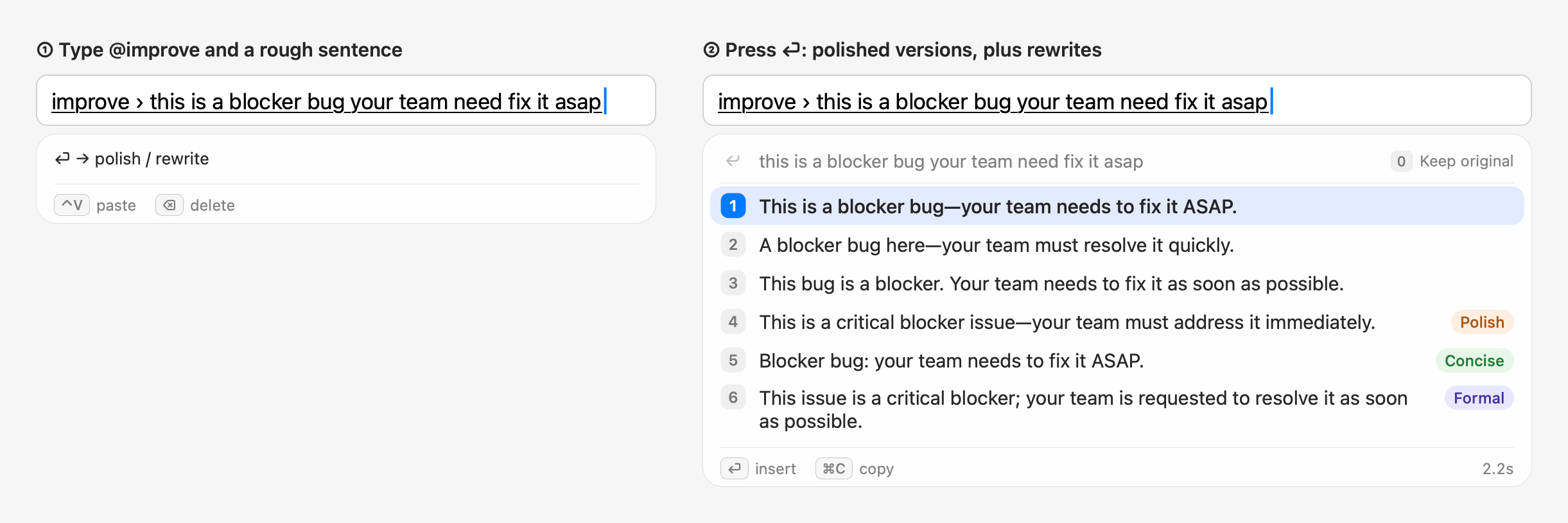
Type @ and a rough sentence: Improve comes first. Return gives three polished versions, then rewrites in the styles you pick: concise, formal, casual, tactful, or big-tech jargon. Always in the language you wrote.
Pick one with a digit, or press Return for the first. 0 keeps what you typed.
Translate into your languages. Ask anything.
@translate writes a line in each language you add: Spanish, French, German, Japanese, Chinese and more, in your order. A sentence in another language gets Translate first.
A question gets Ask AI first, and the answer shows in place: insert it, or copy it with ⌘C.
Keep asking. Set it up by saying so.
An answer leads to the next question. A setting is a sentence away, and a check of your whole setup a click.
After an answer, type the next question and press ⇧Return: the panel becomes the conversation, five rounds by default.
⌘Return takes the conversation, as you saw it, on to your coding agent (Claude Code …), Claude or ChatGPT.
Type “candidates in a column” or “use Claude” in Settings' search: each change shows old → new before it's applied, with Undo. Never your keys.
Settings → About → Troubleshoot checks the input method, your AI provider, permissions and language packs, with a button for what it can fix. Ask it why something fails.
Refine it. Keep it private. Make it yours.
The answer isn't quite right? Say what to change. Something in it is private? It needn't reach the AI.
Type shorter or more formal after the results and press ⇧Return: new ones replace them in place, as often as you like.
Select text in any app and type @: translate or improve it, reply to it in a chat app, or ask about it. The version you pick replaces it.
Each app learns the input you start in there. Turn AI off in the apps you choose.
Turn it on, and emails, phone numbers, card numbers, keys and your own words become placeholders before the AI sees them, then come back in the result.
On a Mac with Apple Intelligence (macOS 26), use the model built into macOS: no key, no cost, nothing leaves the Mac.
A notification says when a new version is out; Update installs it in a click, checked against a signed manifest first.
Commands for your whole Mac.
Not just writing. Type a name after @, in any text field.
Hands a task to your coding agent (Claude Code, Gemini CLI, Kiro CLI …); Claude Code can work in the background and notify you when it's done.
Saves the text to Notes, line breaks and all.
Runs a line of Python or JavaScript and inserts the result.
Sends an iMessage without leaving the app you're in.
⌃V lists what you copied, text and images; point at an image for a larger preview.
Your own AI instructions, programs or web links, and plugins like @stock or @calculator from a signed library.
Your own @ commands, from scripts.
A script in any language with a few lines of metadata becomes an @ command: it can insert its output, show progress, offer an Alfred-style list to pick from as you type, or run in the background and notify you.
Or install a bundle from a Git repository: you see what it runs before it's enabled, and it updates from there when you click Update.
Raycast Script Commands work as they are. See how to write one.

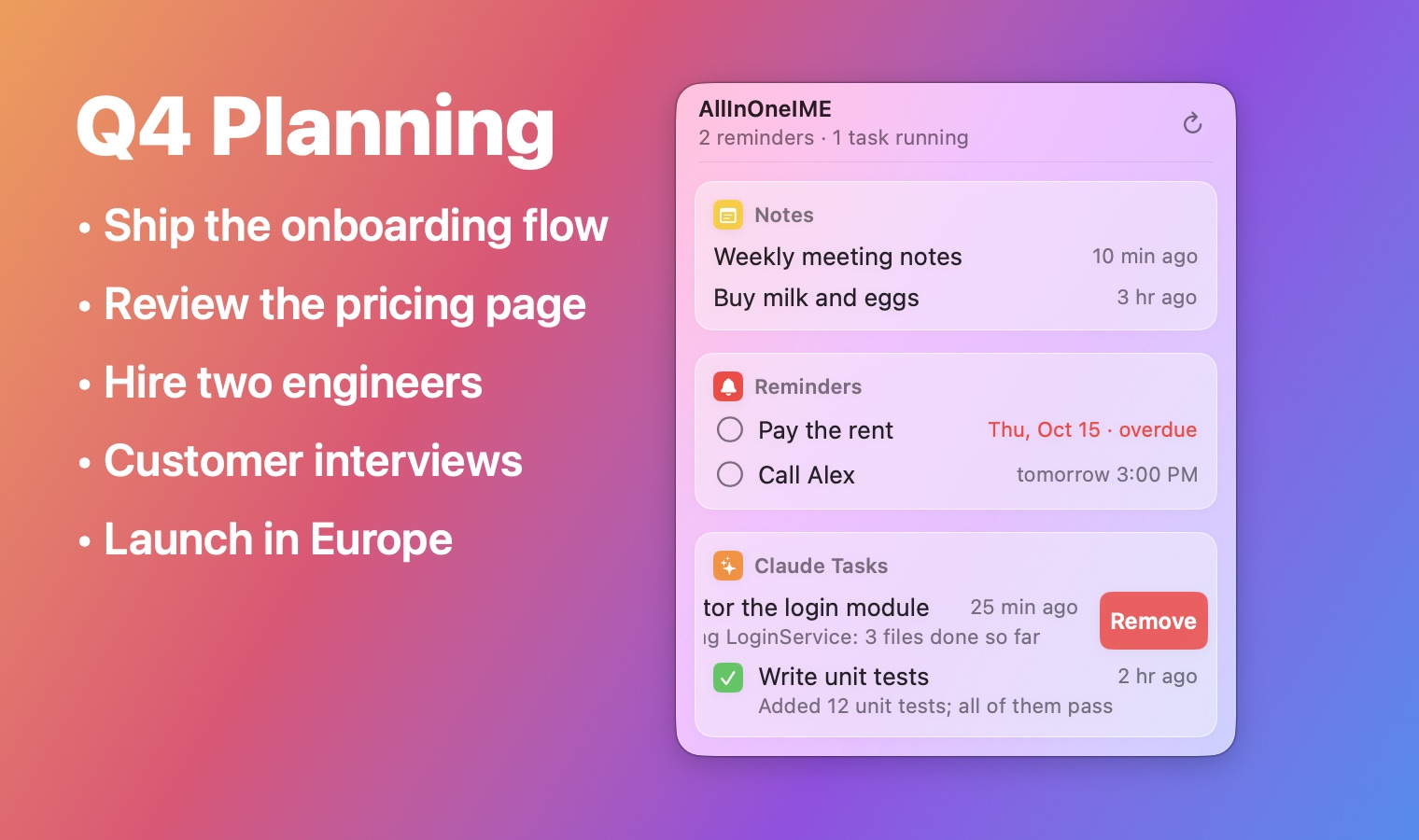
Your notes, reminders and Claude tasks, a click away.
Click the ∞ in the menu bar for what you saved with @note, the reminders you added, and the tasks Claude Code is working on. Swipe a row left to clear it.
It's glass like the rest of macOS, and follows your system settings.
Your AI. Your keys. Your Mac.
Start with AllInOneIME Cloud, 20 free requests a day with no key to set up, or bring your own key for the provider you choose. Either way, it talks to the AI only when you ask it to.
Nothing sent until you pick
What you type after @ stays on your Mac until you pick an AI row; Autocomplete, if you turn it on, sends at a pause. No AI rows during secure input, such as a password field.
Keys in your keychain
API keys stay in the macOS keychain, and each goes only to the service it was saved for.
On-device where it can be
The rows after @ are worked out on your Mac; sums, apps, folders and @reminder never leave it.
Sensitive values hidden
Optionally, emails, numbers, keys and words you list are replaced with placeholders on your Mac before a request goes out.
Or no cloud at all
Choose Apple Intelligence on macOS 26, and the model built into your Mac answers. In apps you choose, no AI runs at all.
Signed and notarized
Signed with a Developer ID and notarized by Apple. An update installs only after it's checked against a signed manifest.
English, Chinese, French, Korean and Hindi.
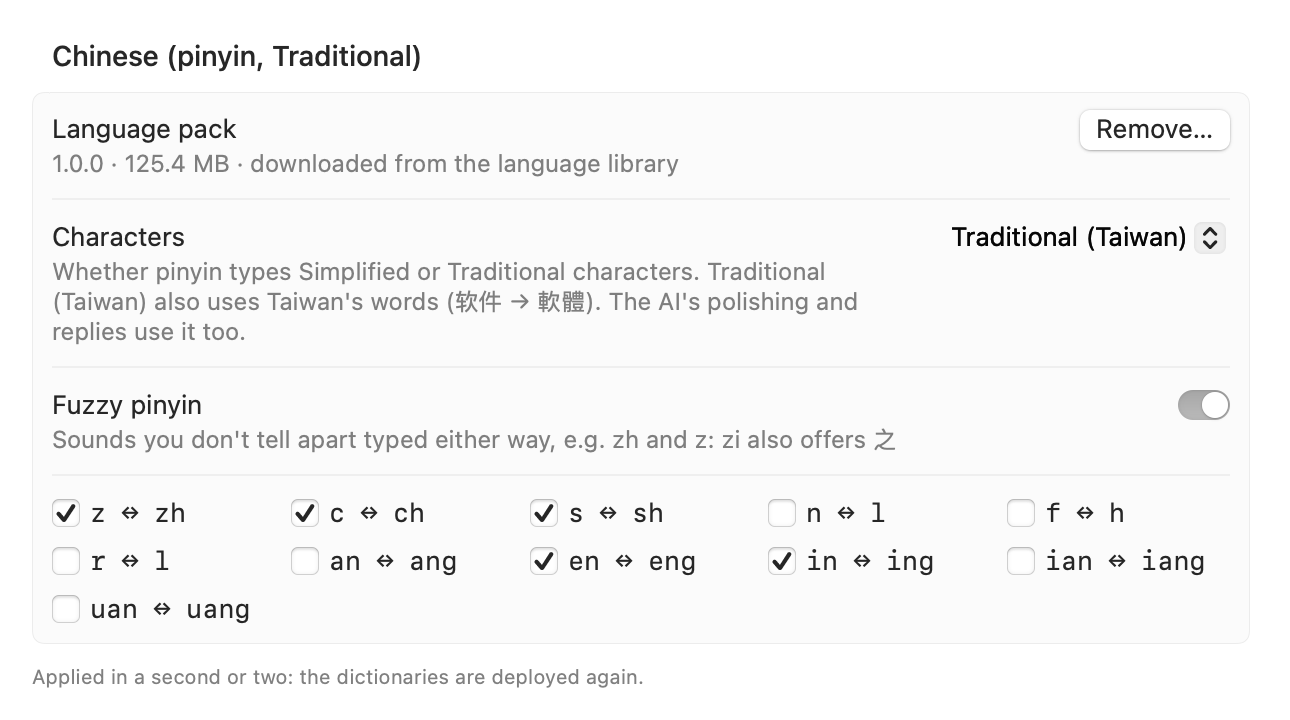
Type English, Chinese in pinyin (built on Rime and rime-ice, with fuzzy pinyin) in Simplified or Traditional characters (Taiwan or Hong Kong), French on its own keyboard layout, Korean Hangul, or Hindi in Devanagari from Latin letters. Tap Shift for the next one.
Right-click a pinyin candidate to remove it for good; Settings brings it back.
Chinese, Korean and Hindi are language packs, downloaded when you add them.
Try it in your next sentence.
Free, with the source on GitHub.
Signed with a Developer ID and notarized by Apple: it installs like any app you download.